From Clipboard to S3 URL: Building a Herdr Image Publisher
How I built a Herdr plugin for reusable S3-backed image URLs—and where Herdr's native remote image paste is the better tool.

I spend a lot of time working with coding agents inside terminal panes. Images enter those workflows in two fundamentally different ways: as input needed by one agent right now, or as an HTTP URL that should remain useful outside the current terminal session.
An important distinction belongs up front: herdr --remote already bridges local clipboard images into a remote pane. The local Herdr client copies the image to a temporary file on the remote host and inserts its path. If the agent only needs to inspect an image in that session, that native path is the right tool. It avoids external storage, credentials, retention, and public exposure.
This plugin addresses the other job: publishing. Screenshots often need to move beyond one prompt into documentation, issue reports, pull-request discussions, messages, or tools that require an HTTP URL. In that workflow, a temporary remote file path is not the desired output.
My setup is one example. Herdr runs on my Mac, while a pane can contain an SSH session connected to a Linux development box. Because the Herdr server remains local, a plugin action can read the Mac clipboard and send a generated URL into that SSH pane. If Herdr itself runs remotely, the plugin sees the remote host’s clipboard instead; native herdr --remote image paste should be used for direct agent input in that topology.
The manual publishing sequence is repetitive: save the image, upload it somewhere, copy the URL, return to the terminal, and paste it into the prompt. I wanted that entire sequence to be one explicit keybinding.
So I built Herdr S3 Image Publisher, a public Herdr plugin that reads an image from the system clipboard, publishes it to S3-compatible storage, and inserts the resulting public or presigned URL into the focused pane.
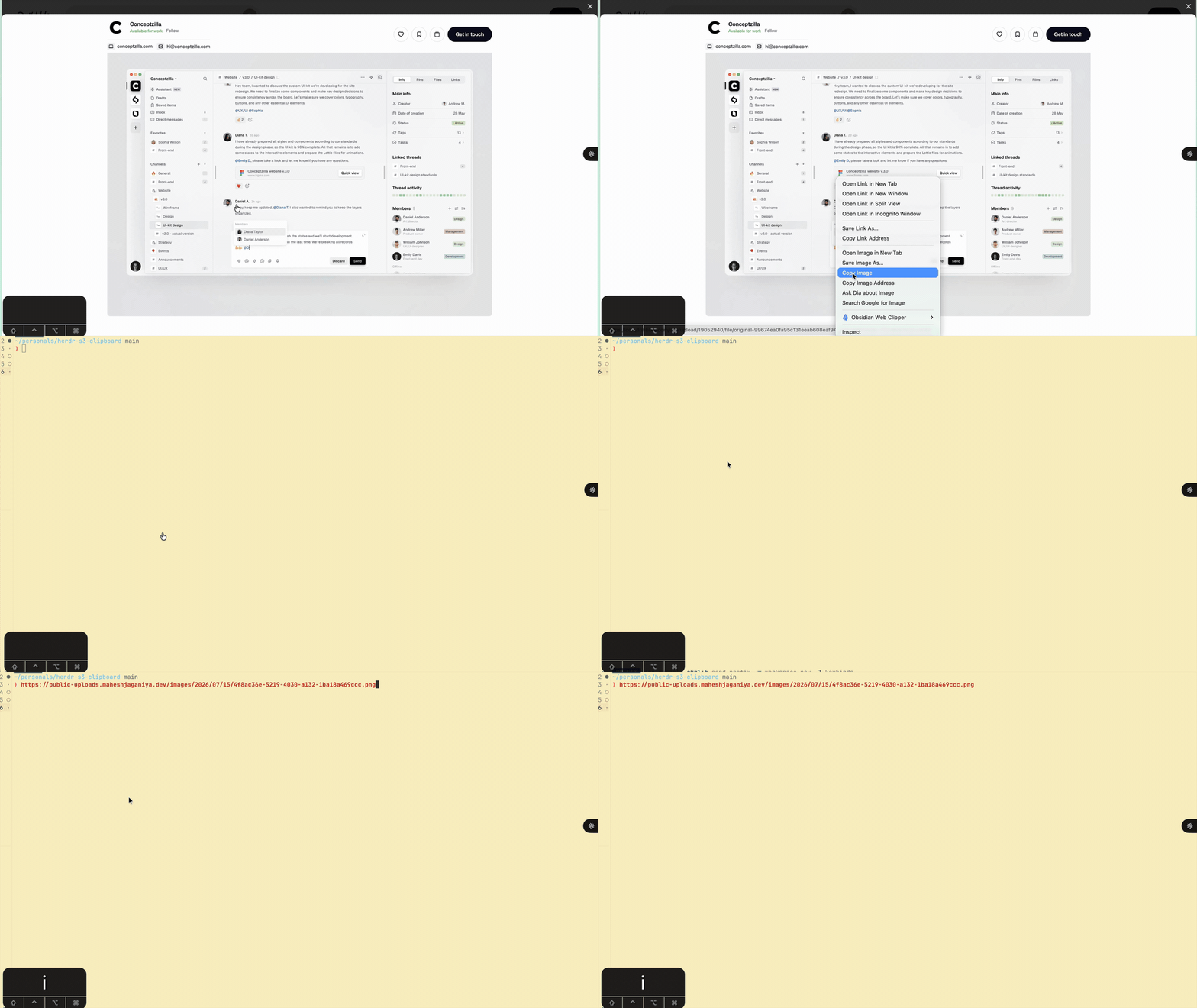
Native Image Paste and URL Publishing Are Different Jobs
The two workflows complement each other rather than compete:
| Requirement | Recommended path |
|---|---|
Give an image directly to an agent through herdr --remote | Herdr’s native image paste |
| Avoid uploading or retaining the image | Herdr’s native image paste |
| Reuse the image in documentation, issues, or messages | S3 Image Publisher |
| Produce a public URL through a custom domain or CDN | S3 Image Publisher in public mode |
| Keep the bucket private while sharing temporary access | S3 Image Publisher in presigned mode |
The practical rule is simple: if the agent only needs the pixels now, use native remote paste. If the result needs to be a URL, publish it.
The Publishing Workflow
The user-facing flow is deliberately small:
- Copy an image or take a screenshot.
- Focus a terminal pane in Herdr.
- Press the configured publishing key, such as
prefix+i. - Wait for the image URL to appear at the prompt.
Behind the keybinding, the plugin performs a few more steps:
System clipboard
      ↓
Read and validate image bytes
      ↓
Upload to S3-compatible storage
      ↓
Build a public or presigned URL
      ↓
Insert the URL into the active Herdr pane
The terminal prompt changes only after the upload and URL generation succeed. If the clipboard has no image or the upload fails, the existing prompt remains untouched and Herdr displays a notification instead.
Why S3-Compatible Instead of Provider-Specific?
The first version was going to target Cloudflare R2 because that is what I use. But R2 speaks the S3 API, and there was no good reason to lock the plugin to one provider.
The released plugin works with:
- Amazon S3
- Cloudflare R2
- Backblaze B2
- DigitalOcean Spaces
- Wasabi
- MinIO
- Other services that expose an S3-compatible API
All uploads go through the standard AWS SDK. Provider differences are configuration—endpoint, region, bucket, and path style—not separate upload implementations.
That decision made the project more useful without making the core action more complicated.
Public URLs and Private Buckets
Uploading an object is only half the problem. The plugin also needs a URL that the tool or person receiving the prompt can open.
There are two URL modes.
Public mode
Use public mode when the bucket, custom domain, or CDN already serves uploaded objects. The plugin combines the configured public base URL with the generated object key:
https://img.example.com/images/2026/07/15/<uuid>.pngThe plugin does not modify bucket policies or object ACLs. Public delivery stays under the storage provider’s configuration.
Presigned mode
Use presigned mode to keep the bucket private. After uploading, the plugin creates a temporary signed GET URL. The default expiry is seven days, and it can be shortened in the configuration.
This gives me a practical default for screenshots: the object is not globally public, but the generated link works wherever I paste it until it expires.
Configuration Without Mixing Credentials
The plugin accepts its own HSC_S3_* variables as well as conventional S3_* variables. The important part is that it never merges the two namespaces.
The selection rule is atomic:
- If any
HSC_S3_*value exists, onlyHSC_S3_*values are used. - A partial
HSC_S3_*configuration fails and lists the missing values. S3_*is considered only when noHSC_S3_*value exists.
Without this rule, it would be possible to accidentally combine a bucket from one environment with credentials from another. Failing loudly is much safer than producing a configuration that looks valid but points at the wrong account.
Credentials live in Herdr’s plugin configuration directory rather than in the repository. The setup wizard writes the file atomically, masks secret input, and applies restrictive permissions on Unix.
An Interactive Setup for New and Experienced Users
I did not want setup to assume that every user already had a bucket and access key ready.
The wizard starts by asking whether the user has an S3-compatible account. If not, it offers a provider list, prints a short credential checklist, and links to the provider’s official instructions. The user can leave setup, create the bucket and credentials, then resume.
Experienced users can move directly through endpoint, region, bucket, access key, secret, and URL mode. Optional advanced settings include:
- Path-style S3 requests
- Object key prefix
Cache-Controlmetadata- Presigned URL expiry
- Automatically pressing Enter after inserting the URL
Validation happens at the field where a value is entered. An invalid endpoint or public base URL is rejected immediately instead of letting the user finish the wizard and failing at the end.
After saving storage settings, the wizard offers prefix+i as the publishing keybinding. It first inspects Herdr’s active configuration. If the key is already assigned, the wizard identifies the conflicting command and lets the user choose another key or skip the change. A confirmed update is backed up and written atomically.
The same setup works in two places:
# A regular terminal; Herdr does not need to be running
npx --yes github:jagzmz/herdr-s3-clipboard setup

# Inside an active Herdr workspace
herdr plugin action invoke hsc.s3-clipboard.configure
Both commands write to the same plugin configuration directory.
Cross-Platform Clipboard Access
S3 upload code is portable. Clipboard access is not, so each operating system has a small adapter:
| Platform | Clipboard implementation |
|---|---|
| macOS | AppKit pasteboard through osascript; TIFF screenshots are converted to PNG with sips |
| Windows | PowerShell and System.Windows.Forms; images are encoded as PNG |
| Linux Wayland | wl-paste from wl-clipboard |
| Linux X11 | xclip |
Every backend returns the same internal shape: image bytes, content type, extension, and size. The rest of the upload pipeline does not need to know which operating system produced it.
Clipboard payloads are validated and capped at 128 MiB. Empty, unsupported, or oversized clipboard data fails before any network request is made.
Connecting the Plugin to Herdr
The plugin exposes two Herdr actions:
hsc.s3-clipboard.upload-clipboard-imagehsc.s3-clipboard.configure
The publishing action receives the focused pane context and inserts the generated URL using Herdr’s pane API. The setup wizard can add the keybinding automatically; the equivalent manual configuration is:
[[keys.command]]
key = "prefix+i"
type = "plugin_action"
command = "hsc.s3-clipboard.upload-clipboard-image"
description = "publish clipboard image"
After a manual change, reload the Herdr configuration:
herdr server reload-configI intentionally chose an explicit action instead of an automatic clipboard watcher. Uploads happen only when requested, which avoids sending an image accidentally and makes storage usage predictable.
Install It
The plugin requires Herdr 0.7.0 or later and Node.js 20 or later.
herdr plugin install jagzmz/herdr-s3-clipboardRun the setup wizard:
npx --yes github:jagzmz/herdr-s3-clipboard setupThe wizard configures storage and offers the prefix+i keybinding. Copy an image and press the configured key in the destination pane to publish it.
The repository includes separate guides for installation, configuration, platform support, and troubleshooting.
The Remote-Session Boundary
The plugin reads the clipboard on the machine running the Herdr server.
If Herdr runs on a Mac and the active pane contains an SSH session, the plugin can read the Mac clipboard and insert the published URL into that remote shell. If the Herdr server itself runs on a remote Linux machine, the plugin reads the Linux host’s clipboard instead.
For the second topology, herdr --remote provides the local-to-remote image bridge for direct agent input. The distinction is architectural: native remote paste transports an image into the session, while this plugin publishes an image beyond the session. A server-side plugin cannot independently read the clipboard of a different client machine.
Design Principles
Even for a focused utility, I wanted the implementation to follow the same principles I use when building larger developer tools:
- Keep provider differences at the configuration boundary. The core upload pipeline should only understand S3.
- Treat configuration namespaces atomically. A loud failure is better than silently combining unrelated credentials.
- Validate while the user is still on the field. Late validation makes interactive setup frustrating.
- Separate platform adapters from application logic. Clipboard handling varies; uploading and URL generation do not.
- Do not mutate the terminal until success is certain. Error handling should never leave half-finished text at the prompt.
- Make the safe action explicit. A keybinding is fast without turning the clipboard into an automatic upload queue.
The result is a focused publishing tool: storage remains under the user’s control, private buckets remain private, and the terminal receives a reusable URL only after the entire operation succeeds.
The source is available at github.com/jagzmz/herdr-s3-clipboard.